Why this screen opens first
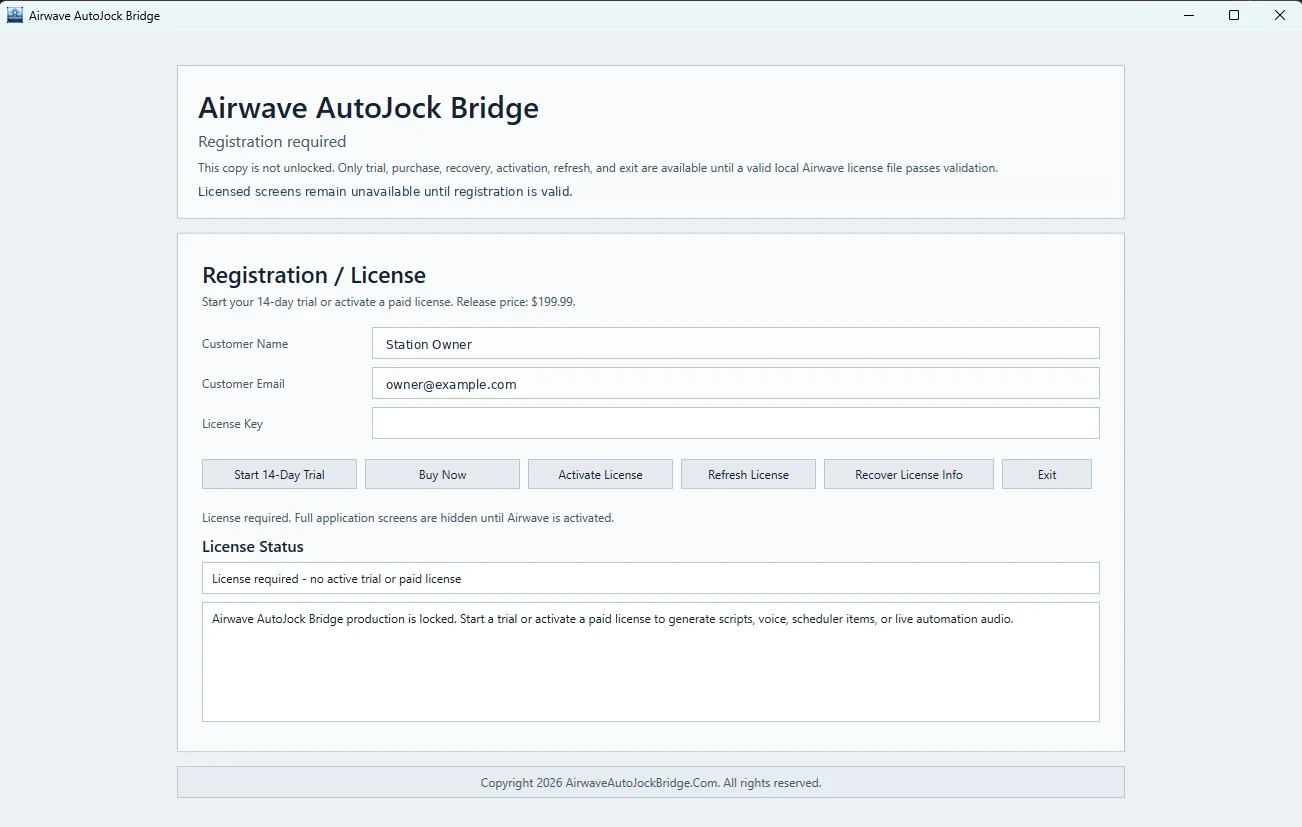
Airwave keeps all production pages locked until a valid local license passes validation. On a new installation, expired trial, moved computer, or missing license file, the application opens directly to Registration / License. You do not need to navigate through Settings to reach it.
While registration is required, only trial, purchase, recovery, activation, refresh, and exit functions are available. Dashboard, voices, scheduling, output, and other production pages remain hidden.
Registration fields
- Customer Name: the name associated with the trial or purchase.
- Customer Email: use the exact email used for the Airwave purchase or customer account.
- License Key: paste the complete Airwave code when activating a paid license.
What each button does
| Button | Purpose |
|---|---|
| Start 14-Day Trial | Begins the official 14-day evaluation after the required website registration completes. |
| Buy Now | Opens the official Airwave purchase choices for Lifetime, Monthly, or Rent-to-Own. |
| Activate License | Validates the entered name, email, and license key and authorizes the current computer. |
| Refresh License | Requests the latest license state from Airwave after a purchase, renewal, restoration, or account change. |
| Recover License Info | Opens the official recovery process when the customer cannot locate the purchased code. |
| Exit | Closes Airwave without opening licensed production pages. |
Start the 14-day trial
- Enter the customer name and email.
- Select Start 14-Day Trial.
- Complete the official website registration.
- Return to Airwave and select Refresh License when requested.
- Confirm the status area shows an active trial and its expiration date.
Activate a paid license
- Enter the name and exact purchase email.
- Paste the complete license code without leading or trailing spaces.
- Select Activate License.
- Wait for the validation result.
- Confirm the status shows the correct plan and that the licensed application opens.
License states shown by Airwave
- Trial: active until the signed trial expiration.
- Monthly: active through the current paid-through date while the recurring agreement remains eligible.
- Rent-to-Own: shows the current RTO eligibility while completed payments continue building ownership credit.
- Lifetime: permanent license status unless the license is explicitly revoked, moved to an invalid machine, or fails a valid tamper check.
The lower status area explains whether the license is active, expired, under review, awaiting refresh, or blocked. Read the complete message before deleting files or attempting another activation.
Recover license information
Select Recover License Info and use the exact purchase email. Returning customers can also sign in to the Airwave customer account to view masked licenses or add another eligible license to the same account.
Moving to another computer
A license is normally authorized to one computer at a time. Deactivate or reset the previous machine through the customer account when available, then install Airwave and activate on the new computer. Do not copy the old computer’s local license file.